Turn one or more supported original Capitec statements into structured CSV files without uploading them, creating an account, or connecting your bank. Everything runs locally in your browser.
Convert your Capitec PDFs
Local processing
Drop your Capitec statements here
or click to choose one or more original digital PDFs
Choose PDFs
Up to 10 PDFs · 25 MB each · Nothing is uploaded
Your statements stay on this device. Each PDF is read in browser memory, one at a time. mooola does not receive, upload, store, or log the statements, their passwords, or the generated CSV files.
Processing
Locally in this browser
Cost
Free, with no account
Supported layouts
Selected Main and Access Anytime account-statement PDFs
Your financial records should not need a server detour
Many PDF converters begin by uploading the document. A bank statement can contain identity, account, balance, income, purchase, and reference information, so this tool ships the parser to your browser and keeps the document there.
No upload
The statement is opened with the browser’s local file APIs. There is no statement-upload request or cloud parsing service.
Capitec-specific checks
The parser identifies supported Capitec layouts and validates available transaction, balance, date, and statement data before producing a CSV.
No silent guessing
If important amounts, directions, balances, or totals cannot be reconciled, conversion stops instead of presenting a questionable CSV as successful.
Get clear insights on your spending
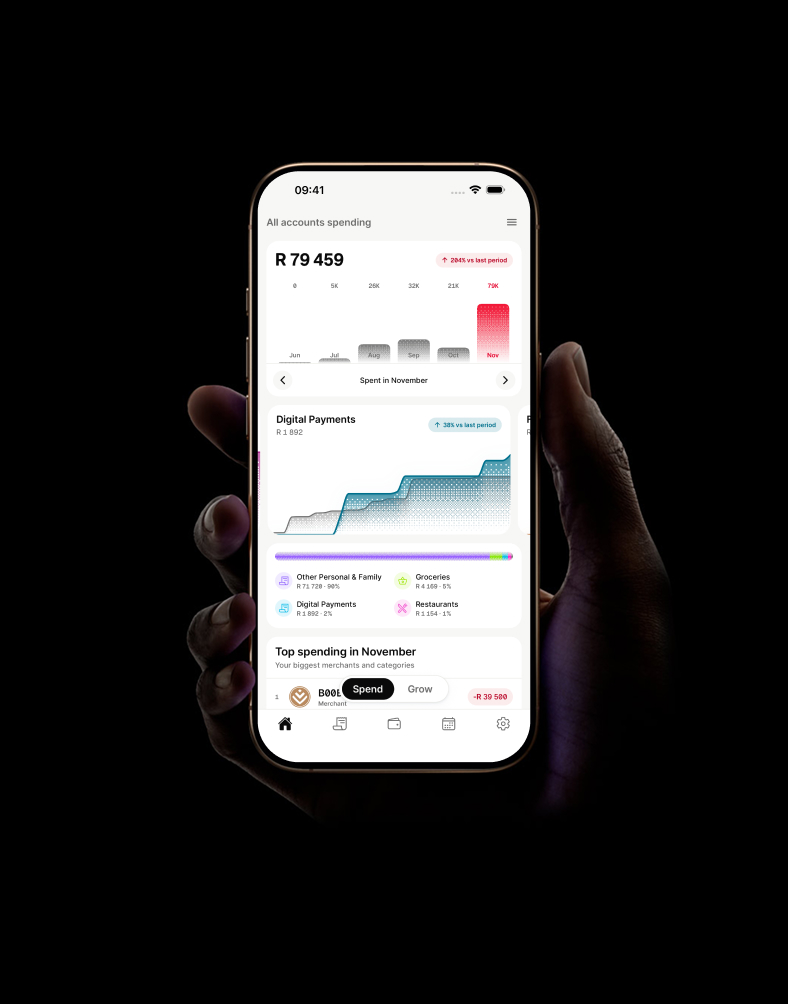
The converter gives you portable transaction data. mooola turns supported bank statements into private views of spending categories, monthly trends, and recurring payments—without connecting to your bank.
Every page is read and checked on your device. Multiple files are processed one at a time, isolating a failed statement from the rest of the batch.
1
Choose one or more Capitec PDFs
Drag up to 10 statements into the converter or use the file picker. If a file is password protected, enter its PDF password locally when asked.
2
Let the browser process each file
PDF.js reads each statement, then mooola uses the matching bank-specific parser to validate the extracted transactions.
3
Review before downloading
Compare each result with its original statement, then download separate CSVs or combine the batch into one file.
Use an original digital Capitec statement with selectable text
The converter supports selected main and access anytime account-statement pdfs. A bank logo alone does not guarantee that a document or account type is compatible.
Good files to try
Original digital Capitec account-statement PDFs
Selected Main account statements
Selected Access Anytime account statements
PDFs where transaction text can be selected
Files that will not work
Scans, photographs, screenshots, or image-only PDFs
Proofs of payment or proof-of-account letters
Documents converted to PDF by another app
Edited, merged, recompressed, or damaged statements
New or unusual layouts the parser does not recognise
Consistent fields without invented data
The generated file uses the same versioned statement schema as the mooola app. It preserves available source detail and leaves unavailable values blank.
Statement context
Statement number and dates, covered period, opening and closing balances, and printed totals when available.
Account context
Account number, name, type, branch code, and currency where the supported layout provides them.
Transaction detail
Dates, source descriptions, references, money in, money out, fees, running balances, codes, and source metadata where available.
Capitec PDF-to-CSV converter FAQ
No. The website reads the PDF and creates the CSV locally in your browser. mooola does not receive or store the statement, its password, its transactions, or the generated CSV.
The converter supports selected main and access anytime account-statement pdfs. Bank document layouts can change, so not every Capitec PDF is supported.
No. The PDF must contain selectable text. Scans, photographs, screenshots, and image-only PDFs require OCR and are not supported by this converter.
Yes. If the PDF is protected, the converter asks for the password and uses it only inside the browser to open the local file. The password is not stored or transmitted.
Yes. You can select or drop up to 10 PDFs at a time. They are processed locally, one at a time, and can be downloaded individually or as one combined CSV. The combined export conservatively removes exact overlapping transactions while preserving repeated identical transactions within a statement.
The CSV uses mooola’s consistent statement schema and includes available statement, account, transaction, date, description, reference, money-in, money-out, fee, balance, and currency fields. Empty fields are left blank rather than invented.
Need the exact Capitec download and import guidance?
Check supported formats and privacy considerations before using a financial document.
mooola is independent and is not affiliated with or endorsed by Capitec Bank. Bank and product names are used only to identify supported statement formats.
 mooola
 App Store
 Google Play