 mooola
 Get mooola for iPhone
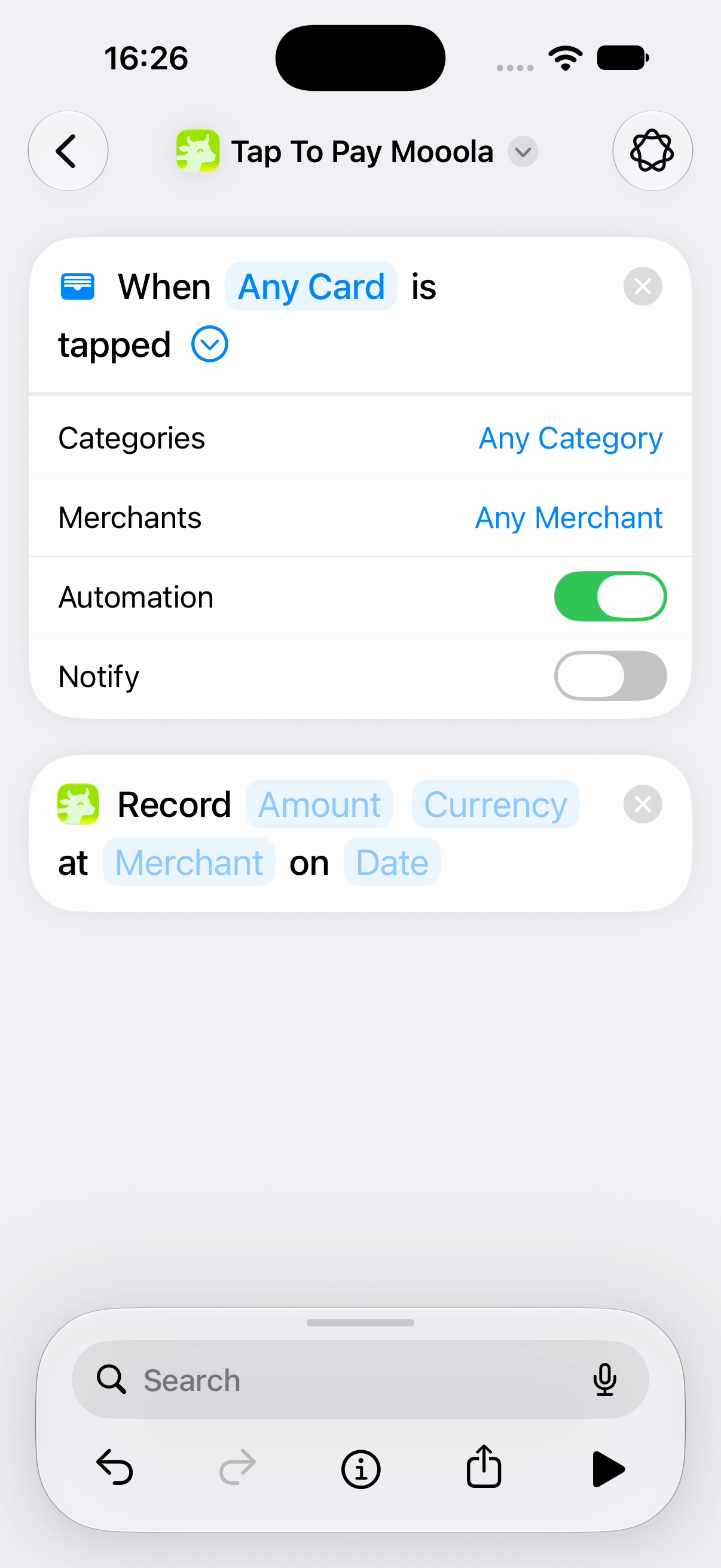
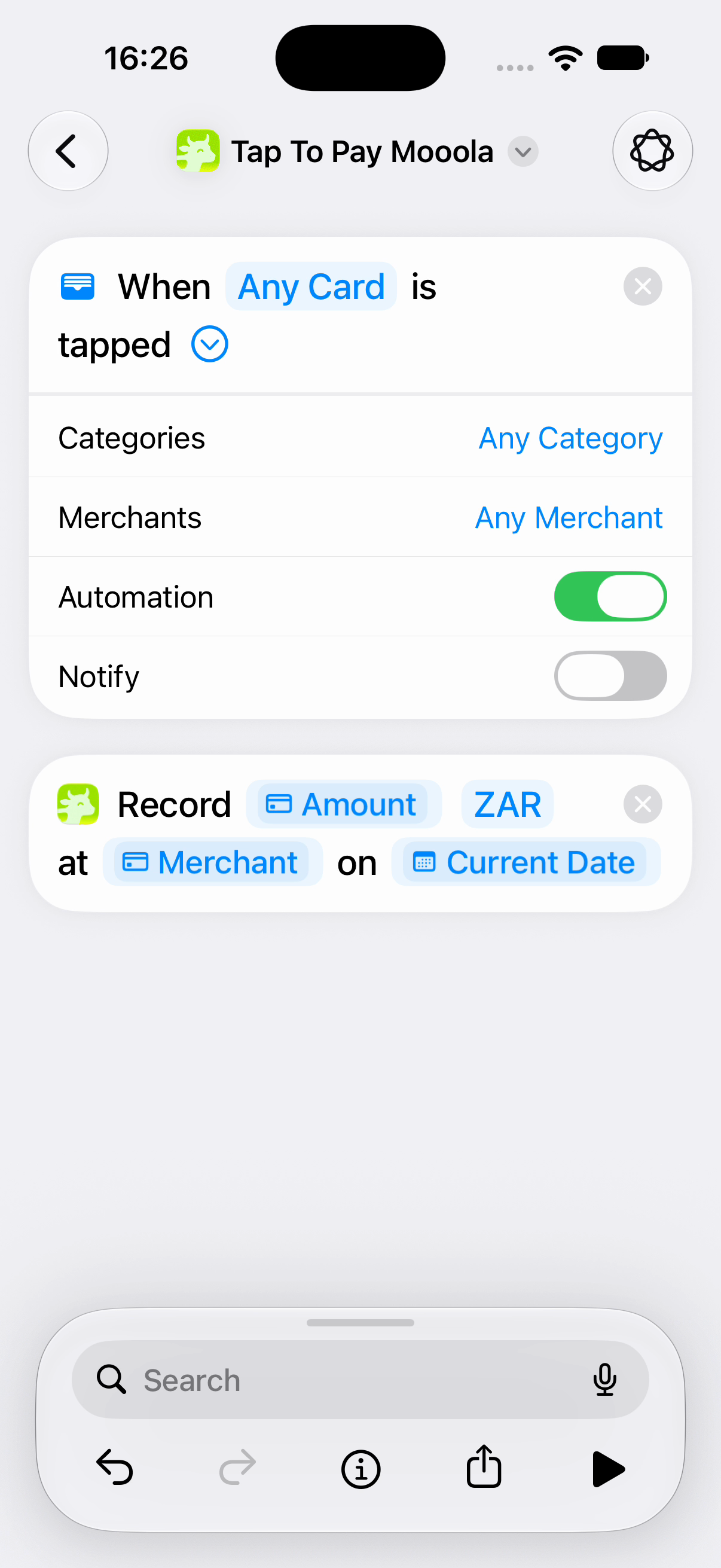
Saved on your iPhone
The automation sends the details you choose to mooola on your device. No bank login or cloud sync is needed.
Coming soon to iPhone: tap to pay with Apple Pay, then open mooola to see supported purchases in your expenses. Set it up in Shortcuts to save payment details on your device, without typing each purchase again.

Once released, enable Apple Wallet capture in mooola’s Settings → Imports & capture, then follow the guide in Shortcuts on an iPhone with iOS 17 or later.
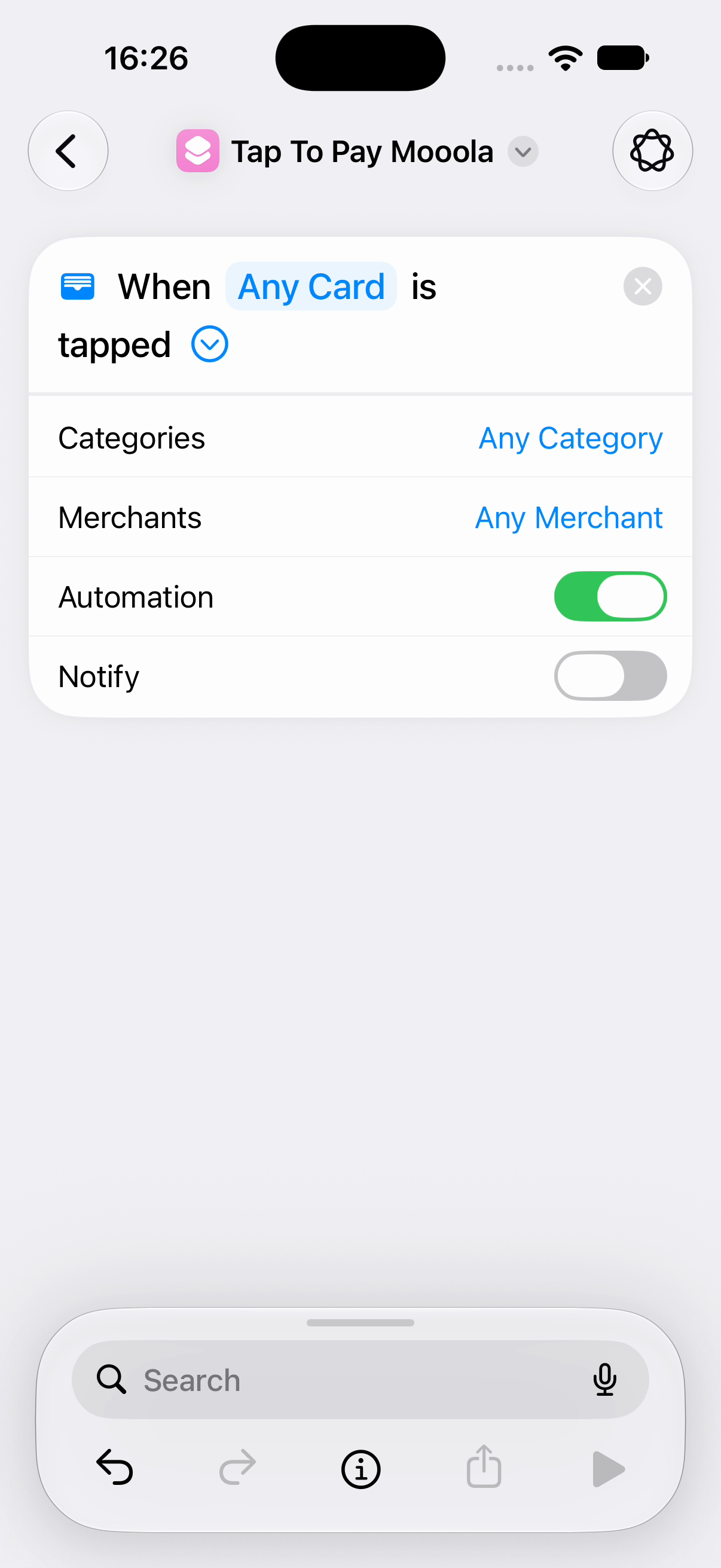
Capture is an optional way to keep up between statement imports. It does not read your Wallet history or confirm that a payment has settled.
The automation sends the details you choose to mooola on your device. No bank login or cloud sync is needed.
A unique match by merchant, amount, currency and date lets mooola connect a captured purchase to its statement entry. Uncertain matches stay separate for you to review.
Choose which cards trigger the automation. Turn capture off in mooola or disable the automation in Shortcuts whenever you want.
Choose your cards, connect the payment details and save your automation in Shortcuts. Once capture is released, mooola’s guide will walk you through each step.
Read the Apple Pay spending guideAvailability, setup and what to expect on iPhone.